Select Task and Cell
In QuickPlanX, selecting a task or a specific cell is fundamental to performing operations. This guide explains how to manage selections and focus within your project.
Selecting and Deselecting Tasks
Selecting a Task
You can select a task in several ways:
- Click/Tap: The most straightforward method is to click (or tap on iOS) a task in any view.
- Keyboard (Mac): Utilize the
Up(↑) andDown(↓) arrow keys to navigate through tasks.
Deselecting a Task
To deselect the currently selected task:
- Keyboard (Mac): Press the
Escape(⎋) key. - iOS: Tap the
···menu in the action bar and select "Deselect Task."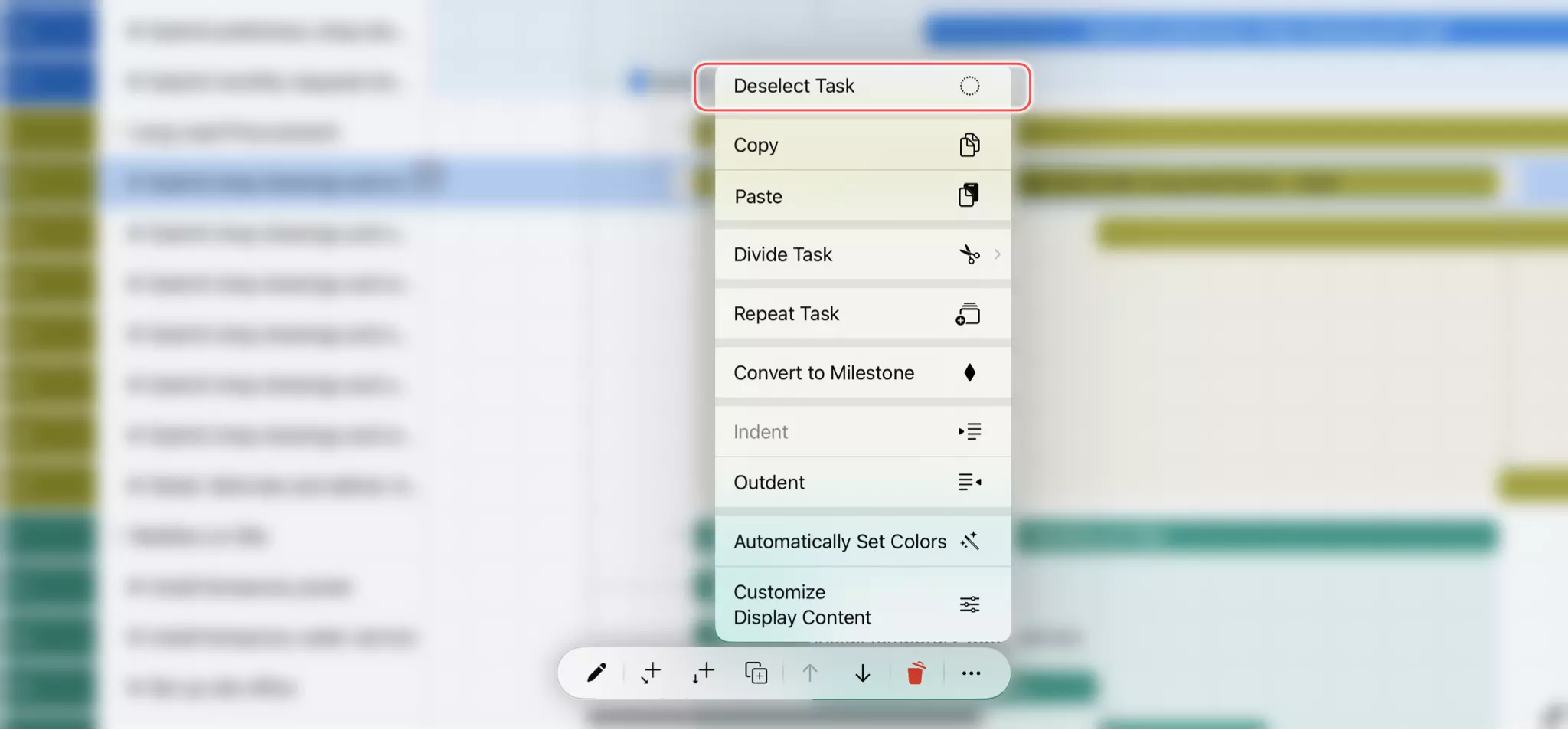
- Click/Tap Empty Space: Click on any empty area in the Table, Gantt Chart, or Tree views.
Cell Selection in the Table View
When the Table View is active, you can focus on a specific cell within the selected task's row.
Selecting a Cell
With the Table View visible:
- Click: Click on any cell to select its task and set the focus to that cell.
- Keyboard (Mac):
- Use
Up(↑) andDown(↓) to change the selected row. - Use
Left(←) andRight(→) to change the focused cell within the current row.
- Use
Deselecting a Cell
Deselecting the task will also remove the cell selection.
Switching Focus: Cell vs. Task
When the Table View and Gantt Chart are displayed together, the focus can be either on a specific cell or on the entire task. This focus determines how actions, like pressing the Delete (⌫) key, are interpreted.

- Focus on a cell: Click a cell in the Table View. The task is selected, and that cell becomes the focus.
- Focus on the entire task: Click the task bar in the Gantt Chart. The cell focus is removed, and the entire task becomes the focus.
Note that when the "WBS" cell is in focus, any operation applies to the entire task.
Why Multiple Selection is Not Supported
A common question from users is why QuickPlanX does not support selecting and operating on multiple tasks simultaneously. The decision to omit this feature is intentional and crucial for maintaining the logical integrity and predictability of your project schedule. Project plans in QuickPlanX are not just flat lists of items; they are dynamic structures with complex interdependencies.
Here are the key reasons why multi-selection is problematic:
1. Ambiguity in Hierarchical Operations (Tree Structure)
Tasks in QuickPlanX are organized in a work breakdown structure (WBS), a tree hierarchy where tasks can have subtasks. This structure creates parent-child relationships that are vital for project organization.
-
The Deletion Dilemma: Imagine selecting a parent task and only some of its subtasks. If you press "delete," what should happen? Should the app delete only the selected tasks, leaving the parent with its remaining children? Or should it delete the parent and all its subtasks, including the unselected ones? Both interpretations are plausible, and the app cannot guess the user's intent without complex and potentially confusing confirmation dialogs.
-
The Move Ambiguity: Similarly, if you select a parent and some of its children to move them, where do the unselected children go? Do they stay behind, or do they move with their parent? This ambiguity can easily lead to a disorganized project structure.
2. Conflicts with Task Dependencies (Task Links)
Tasks are often linked with dependencies (e.g., "Finish-to-Start"). Changing one task can automatically shift the schedule of many other tasks.
- Chain Reaction Conflicts: If you select multiple tasks in a dependency chain and try to modify their dates simultaneously, it becomes impossible for the app to know how to apply the changes while respecting the link constraints. For example, moving two linked tasks by the same duration might violate the dependency rule between them. Resolving such conflicts automatically could lead to unexpected and undesirable changes throughout the project schedule.
3. Inconsistencies in Calculated Properties
Some properties of parent tasks are not set directly but are calculated from their children. For instance, the start date, end date, and duration of a summary task are determined by its subtasks.
- Editing Calculated Fields: If you were to select a parent task and a regular task and try to edit a property like "duration," the action is clear for the regular task but invalid for the parent task, whose duration is calculated. Applying partial changes would be inconsistent and confusing.
Our Approach: Prioritizing Clarity and Consistency
While it is technically possible to allow multi-selection for changing simple, independent properties (like color or task name), enabling it for some actions but not others would create an inconsistent and unpredictable user experience.
To avoid these logical traps and ensure that your project plan remains coherent, QuickPlan has chosen to focus on single-task operations that are clear and predictable.
Alternatives for Common Multi-Task Scenarios
We provide efficient ways to handle tasks that often lead to requests for multi-selection:
- Removing Several Tasks: Select the first task you want to remove. After deleting it, QuickPlanX automatically selects the next task in the list, allowing you to proceed with deletions quickly and sequentially.
- Reorganizing Task Hierarchy: The Tree View offers a powerful and intuitive drag-and-drop interface. You can easily move single tasks or entire parent-child groups to restructure your project, which is often faster and clearer than multi-select-and-move actions.