Backup
QuickPlanX can automatically back up your projects to files individually or in bulk. Backup files can be stored on your device or in iCloud Drive.
Auto Backup
You can use QuickPlanX to store your projects on iCloud, which is a secure and reliable cloud storage platform. However, it is always a good idea to have a backup copy of your data in case something goes wrong.

For your data safety, QuickPlanX provides you more control over your data, by allowing you to backup your projects stored on iCloud database to files. QuickPlanX can backup the project to files with the .quickplanx file extension automatically when you open them. You can also set the backup frequency and the location where the backup files are stored, or disable the backup feature from the settings.
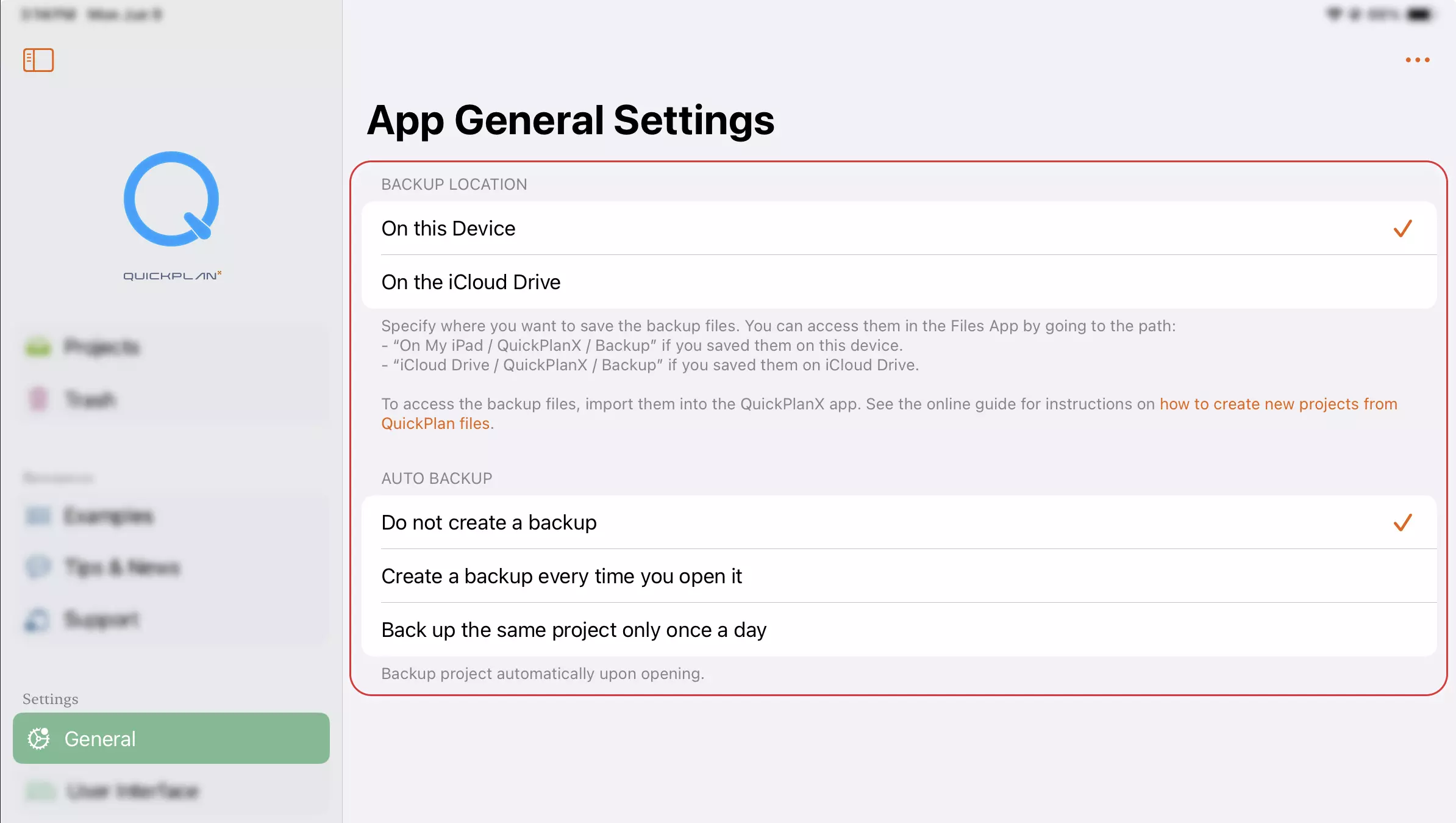
Backup Location
You can choose where to store your backup files from the following options:
- On the device: This option will save the backup files on your local device, such as your iPhone, iPad, or Mac. You can access the backup files from the Files app on your device.
- On the iCloud Drive: This option will save the backup files on your iCloud Drive, which is a cloud storage service that you can access from any device with your Apple ID. You can access the backup files from the Files app on your device, or from the iCloud website on any web browser.
Backup Frequency
You can choose how often to backup your projects from the following options:
- Do not create a backup: This option will disable the backup feature. No backup files will be created or updated when you open your projects.
- Create a backup every time you open it: This option will backup the project every time you open it. A new backup file will be created or an existing one will be overwritten with the latest version of the project.
- Back up the same project only once a day: This option will backup the project only once a day, regardless of how many times you open it. A new backup file will be created or an existing one will be updated with the latest version of the project, but only if the last backup was more than 24 hours ago.
Manual Backup
Bulk Backup
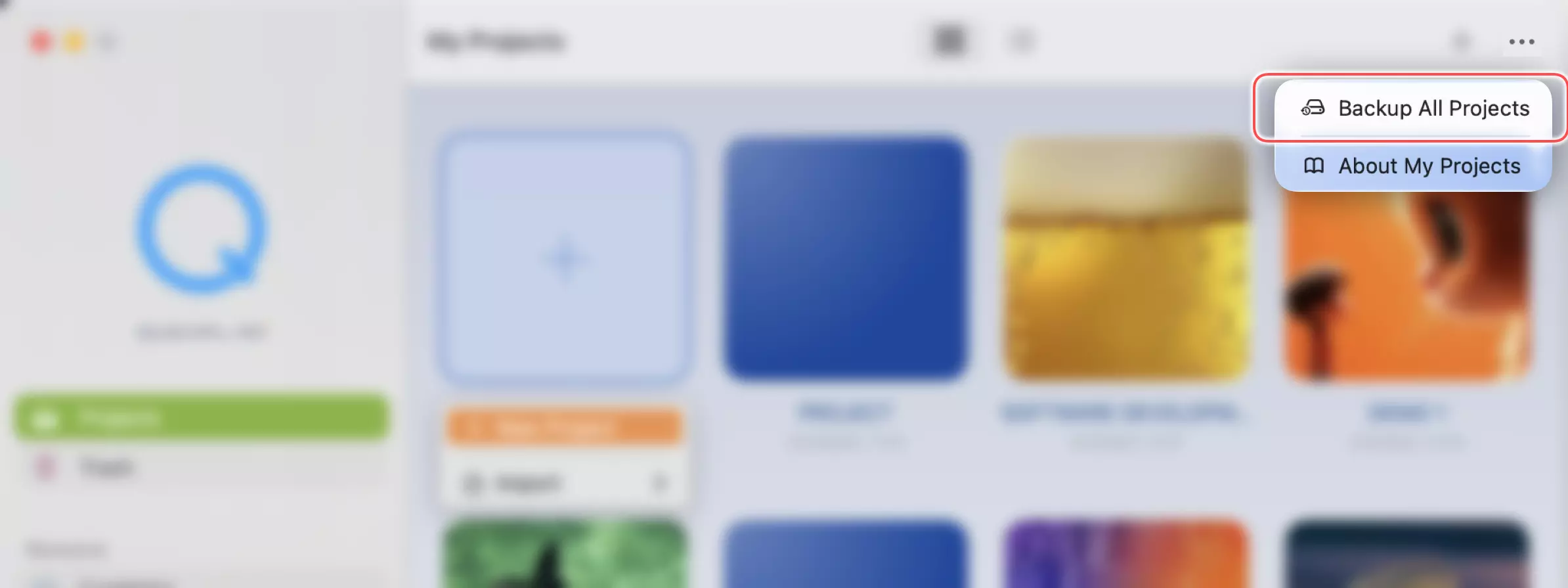
To back up all projects at once, tap the "..." button locate at right-top of the project dashboard, then tap the Backup All Projects menu item. This creates a .quickplanx backup file for each project and saves them to the backup location configured in the app settings.
Import Backup Files
You can import backup files to restore or create new projects in your iCloud database.