Natural Scrolling on Mac
Scroll with Left Mouse Drag
QuickPlanX supports an optional drag-to-scroll interaction on macOS, similar to finger scrolling on iOS.
When enabled, you can drag with the left mouse button to pan (scroll) the content in Table View and Gantt Chart — a fluid way to navigate large schedules without relying only on scrollbars or trackpad gestures.
What this feature does
After enabling Natural Scrolling on Mac:
- Table View: drag to scroll the table content.
- Gantt Chart: drag to pan across the timeline and task area.
This is especially useful if you prefer “grab and move” navigation (common in many professional tools).
How to enable
On Mac
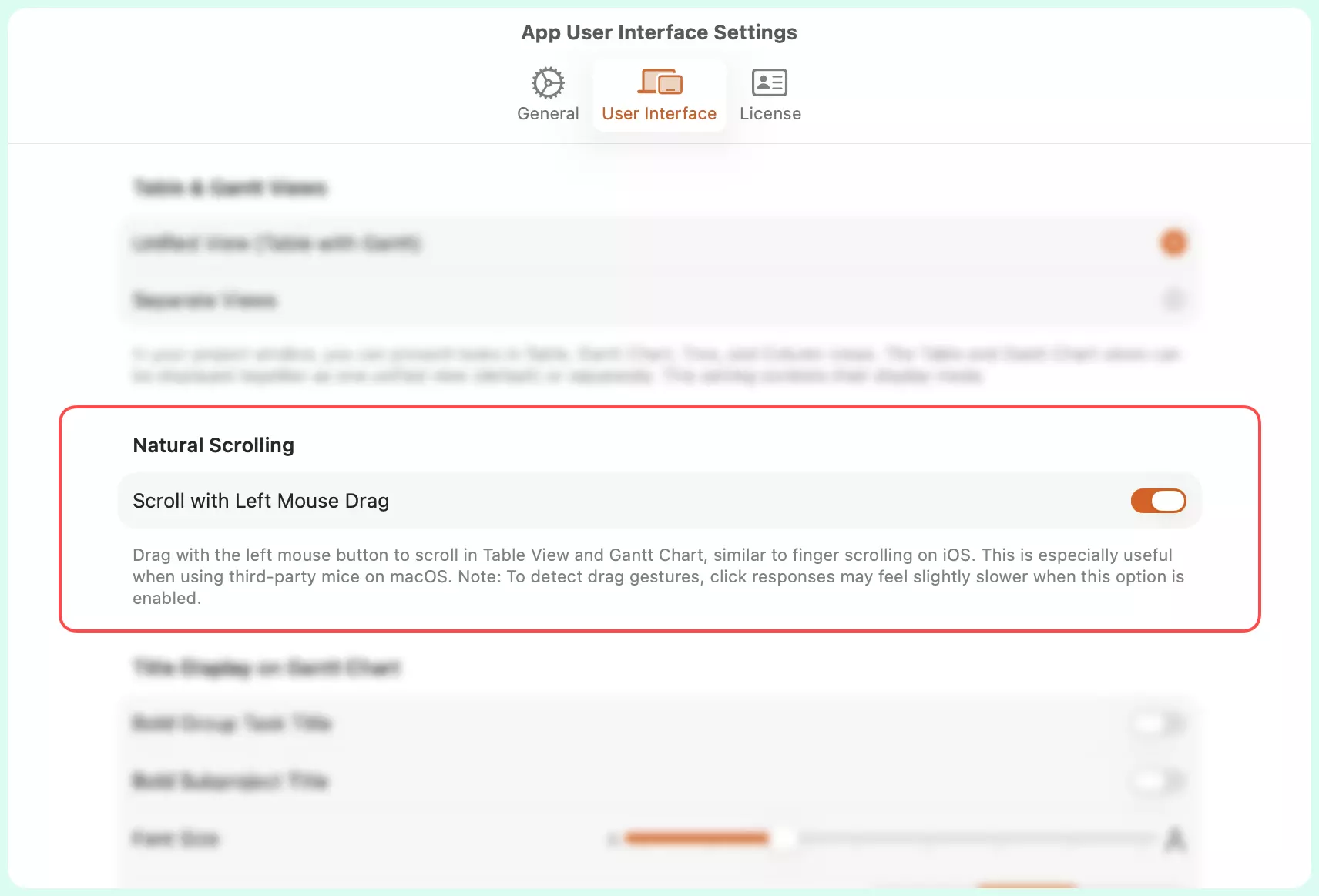
- Go to App Settings
- Switch to User Interface tab
- Enable Scroll with Left Mouse Drag
How to use
Once enabled, drag with the left mouse button to scroll/pan in Table View and Gantt chart.
Notes
- This option affects mouse behavior only on macOS.
- Trackpad users can continue using two-finger scrolling regardless of this setting.
- Dragging on interactive elements (e.g., resizing handles, task adjustments) will continue to behave according to their specific functions.
Troubleshooting
“Dragging doesn’t pan the view”
- Confirm Natural Scrolling on Mac is enabled in Settings → User Interface.
- Make sure you are dragging inside the content area, not on a control that has its own drag behavior.
Why it is disabled by default
Natural Scrolling changes how mouse interaction is interpreted.
When drag-to-pan is enabled, the system must briefly determine whether your mouse action is:
- A click (for selection or editing), or
- The beginning of a drag to pan
To make that distinction reliably, a very small delay is introduced before confirming a simple click.
While the delay is subtle, some users prefer instant click responsiveness, especially when frequently selecting tasks or editing cells.
For this reason, Natural Scrolling is disabled by default on macOS, allowing immediate click response. Users who prefer drag-to-pan navigation can enable it in Settings.
This design ensures:
- Fastest possible click interaction by default
- Optional fluid panning for users who prefer it